
css25 CSS Tables
https://www.w3schools.com/css/css_table.asp
css25 CSS Tables
CSS Tables
The look of an HTML table can be greatly improved with CSS:
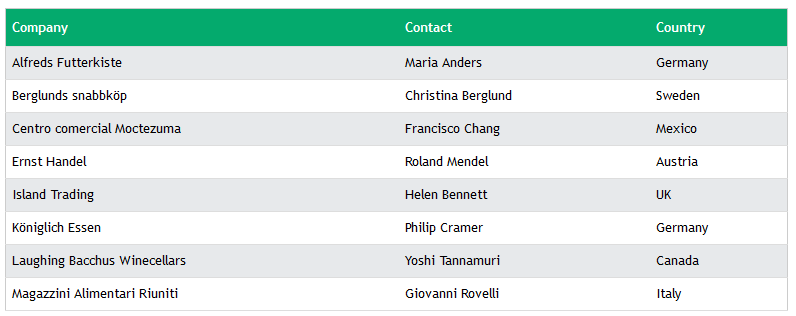
<!DOCTYPE html>
<html>
<head>
<style>
#customers {
  font-family: Arial, Helvetica, sans-serif;
  border-collapse: collapse;
  width: 100%;
}

#customers td, #customers th {
  border: 1px solid #ddd;
  padding: 8px;
}

#customers tr:nth-child(even){background-color: #f2f2f2;}

#customers tr:hover {background-color: #ddd;}

#customers th {
  padding-top: 12px;
  padding-bottom: 12px;
  text-align: left;
  background-color: #04AA6D;
  color: white;
}
</style>
</head>
<body>

<h1>A Fancy Table</h1>

<table id="customers">
  <tr>
    <th>Company</th>
    <th>Contact</th>
    <th>Country</th>
  </tr>
  <tr>
    <td>Alfreds Futterkiste</td>
    <td>Maria Anders</td>
    <td>Germany</td>
  </tr>
  <tr>
    <td>Berglunds snabbköp</td>
    <td>Christina Berglund</td>
    <td>Sweden</td>
  </tr>
  <tr>
    <td>Centro comercial Moctezuma</td>
    <td>Francisco Chang</td>
    <td>Mexico</td>
  </tr>
  <tr>
    <td>Ernst Handel</td>
    <td>Roland Mendel</td>
    <td>Austria</td>
  </tr>
  <tr>
    <td>Island Trading</td>
    <td>Helen Bennett</td>
    <td>UK</td>
  </tr>
  <tr>
    <td>Königlich Essen</td>
    <td>Philip Cramer</td>
    <td>Germany</td>
  </tr>
  <tr>
    <td>Laughing Bacchus Winecellars</td>
    <td>Yoshi Tannamuri</td>
    <td>Canada</td>
  </tr>
  <tr>
    <td>Magazzini Alimentari Riuniti</td>
    <td>Giovanni Rovelli</td>
    <td>Italy</td>
  </tr>
  <tr>
    <td>North/South</td>
    <td>Simon Crowther</td>
    <td>UK</td>
  </tr>
  <tr>
    <td>Paris spécialités</td>
    <td>Marie Bertrand</td>
    <td>France</td>
  </tr>
</table>

</body>
</html>
Table Borders
To specify table borders in CSS, use the border property.
The example below specifies a solid border for <table>, <th>, and <td> elements:
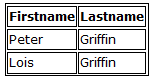
Example
table, th, td {
border: 1px solid;
}
<!DOCTYPE html>
<html>
<head>
<style>
table, th, td {
  border: 1px solid;
}
</style>
</head>
<body>

<h2>Add a border to a table:</h2>

<table>
  <tr>
    <th>Firstname</th>
    <th>Lastname</th>
  </tr>
  <tr>
    <td>Peter</td>
    <td>Griffin</td>
  </tr>
  <tr>
    <td>Lois</td>
    <td>Griffin</td>
  </tr>
</table>

</body>
</html>
Full-Width Table
The table above might seem small in some cases. If you need a table that should span the entire screen (full-width), add width: 100% to the <table> element:

Example
table {
width: 100%;
}
<!DOCTYPE html>
<html>
<head>
<style>
table, th, td {
  border: 1px solid;
}

table {
  width: 100%;
}
</style>
</head>
<body>

<h2>Full-width Table</h2>

<table>
  <tr>
    <th>Firstname</th>
    <th>Lastname</th>
  </tr>
  <tr>
    <td>Peter</td>
    <td>Griffin</td>
  </tr>
  <tr>
    <td>Lois</td>
    <td>Griffin</td>
  </tr>
</table>

</body>
</html>
Double Borders
Notice that the table in the examples above have double borders. This is because both the table and the <th> and <td> elements have separate borders.
To remove double borders, take a look at the example below.
Collapse Table Borders
The border-collapse property sets whether the table borders should be collapsed into a single border:

Example
table {
border-collapse: collapse;
}
<!DOCTYPE html>
<html>
<head>
<style>
table, td, th {
  border: 1px solid;
}

table {
  width: 100%;
  border-collapse: collapse;
}
</style>
</head>
<body>

<h2>Let the table borders collapse</h2>

<table>
  <tr>
    <th>Firstname</th>
    <th>Lastname</th>
  </tr>
  <tr>
    <td>Peter</td>
    <td>Griffin</td>
  </tr>
  <tr>
    <td>Lois</td>
    <td>Griffin</td>
  </tr>
</table>

</body>
</html>
If you only want a border around the table, only specify the border property for <table>:

Example
table {
border: 1px solid;
}
<!DOCTYPE html>
<html>
<head>
<style>
table {
  width: 100%;
  border: 1px solid;
}
</style>
</head>
<body>
    <th>Firstname</th>
    <th>Lastname</th>
  </tr>
  <tr>
    <td>Peter</td>
    <td>Griffin</td>
  </tr>
  <tr>
    <td>Lois</td>
    <td>Griffin</td>
  </tr>
</table>

</body>
</html>

<h2>Single Border Around The Table</h2>

<table>
  <tr>
CSS Table Size
Table Width and Height
The width and height of a table are defined by the width and height properties.
The example below sets the width of the table to 100%, and the height of the <th> elements to 70px:

Example
table {
width: 100%;
}
th
{
height: 70px;
}
<!DOCTYPE html>
<html>
<head>
<style>
table, td, th {
  border: 1px solid black;
}

table {
  border-collapse: collapse;
  width: 100%;
}

th {
  height: 70px;
}
</style>
</head>
<body>

<h2>The width and height Properties</h2>

<p>Set the width of the table, and the height of the table header row:</p>

<table>
  <tr>
    <th>Firstname</th>
    <th>Lastname</th>
    <th>Savings</th>
  </tr>
  <tr>
    <td>Peter</td>
    <td>Griffin</td>
    <td>$100</td>
  </tr>
  <tr>
    <td>Lois</td>
    <td>Griffin</td>
    <td>$150</td>
  </tr>
  <tr>
    <td>Joe</td>
    <td>Swanson</td>
    <td>$300</td>
  </tr>
  <tr>
    <td>Cleveland</td>
    <td>Brown</td>
    <td>$250</td>
  </tr>
</table>

</body>
</html>
To create a table that should only span half the page, use width: 50%:
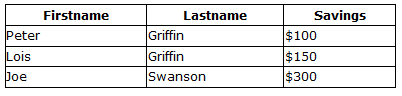
Example
table {
width: 50%;
}
<!DOCTYPE html>
<html>
<head>
<style>
table, td, th {
  border: 1px solid black;
}

table {
  border-collapse: collapse;
  width: 50%;
}
</style>
</head>
<body>

<h2>A table that only span half the page</h2>

<p>Set the width of the table to 50%:</p>

<table>
  <tr>
    <th>Firstname</th>
    <th>Lastname</th>
    <th>Savings</th>
  </tr>
  <tr>
    <td>Peter</td>
    <td>Griffin</td>
    <td>$100</td>
  </tr>
  <tr>
    <td>Lois</td>
    <td>Griffin</td>
    <td>$150</td>
  </tr>
  <tr>
    <td>Joe</td>
    <td>Swanson</td>
    <td>$300</td>
  </tr>
  <tr>
    <td>Cleveland</td>
    <td>Brown</td>
    <td>$250</td>
  </tr>
</table>

</body>
</html>
CSS Table Alignment
Horizontal Alignment
The text-align property sets the horizontal alignment (like left, right, or center) of the content in <th> or <td>.
By default, the content of <th> elements are center-aligned and the content of <td> elements are left-aligned.
To center-align the content of <td> elements as well, use text-align: center:

Example
td {
text-align: center;
}
<!DOCTYPE html>
<html>
<head>
<style>
table, td, th {
  border: 1px solid black;
}

table {
  border-collapse: collapse;
  width: 100%;
}

td {
  text-align: center;
}
</style>
</head>
<body>

<h2>The text-align Property</h2>

<p>This property sets the horizontal alignment (like left, right, or center) of the content in th or td.</p>

<table>
  <tr>
    <th>Firstname</th>
    <th>Lastname</th>
    <th>Savings</th>
  </tr>
  <tr>
    <td>Peter</td>
    <td>Griffin</td>
    <td>$100</td>
  </tr>
  <tr>
    <td>Lois</td>
    <td>Griffin</td>
    <td>$150</td>
  </tr>
  <tr>
    <td>Joe</td>
    <td>Swanson</td>
    <td>$300</td>
  </tr>
  <tr>
    <td>Cleveland</td>
    <td>Brown</td>
    <td>$250</td>
  </tr>
</table>

</body>
</html>
To left-align the content, force the alignment of <th> elements to be
left-aligned, with the text-align: left property:

Example
th {
text-align: left;
}
<!DOCTYPE html>
<html>
<head>
<style>
table, td, th {
  border: 1px solid black;
}

table {
  border-collapse: collapse;
  width: 100%;
}

th {
  text-align: left;
}
</style>
</head>
<body>

<h2>The text-align Property</h2>

<p>This property sets the horizontal alignment (like left, right, or center) of the content in th or td.</p>

<table>
  <tr>
    <th>Firstname</th>
    <th>Lastname</th>
    <th>Savings</th>
  </tr>
  <tr>
    <td>Peter</td>
    <td>Griffin</td>
    <td>$100</td>
  </tr>
  <tr>
    <td>Lois</td>
    <td>Griffin</td>
    <td>$150</td>
  </tr>
  <tr>
    <td>Joe</td>
    <td>Swanson</td>
    <td>$300</td>
  </tr>
  <tr>
    <td>Cleveland</td>
    <td>Brown</td>
    <td>$250</td>
  </tr>
</table>

</body>
</html>
Vertical Alignment
The vertical-align property sets the vertical alignment (like top, bottom, or middle)
of the content in <th> or <td>.
By default, the vertical alignment of the content in a table is middle (for both <th> and <td> elements).
The following example sets the vertical text alignment to bottom for <td> elements:

Example
td {
height: 50px;
vertical-align: bottom;
}
<!DOCTYPE html>
<html>
<head>
<style>
table, td, th {
  border: 1px solid black;
}

table {
  border-collapse: collapse;
  width: 100%;
}

td {
  height: 50px;
  vertical-align: bottom;
}
</style>
</head>
<body>

<h2>The vertical-align Property</h2>

<p>This property sets the vertical alignment (like top, bottom, or middle) of the content in th or td.</p>

<table>
  <tr>
    <th>Firstname</th>
    <th>Lastname</th>
    <th>Savings</th>
  </tr>
  <tr>
    <td>Peter</td>
    <td>Griffin</td>
    <td>$100</td>
  </tr>
  <tr>
    <td>Lois</td>
    <td>Griffin</td>
    <td>$150</td>
  </tr>
  <tr>
    <td>Joe</td>
    <td>Swanson</td>
    <td>$300</td>
  </tr>
  <tr>
    <td>Cleveland</td>
    <td>Brown</td>
    <td>$250</td>
  </tr>
</table>

</body>
</html>
CSS Table Style
Table Padding
To control the space between the border and the content in a table, use the padding property on <td> and <th> elements:
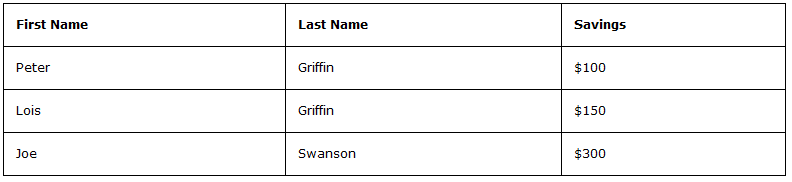
Example
th, td {
padding: 15px;
text-align: left;
}
<!DOCTYPE html>
<html>
<head>
<style>
table, td, th {
  border: 1px solid #ddd;
  text-align: left;
}

table {
  border-collapse: collapse;
  width: 100%;
}

th, td {
  padding: 15px;
}
</style>
</head>
<body>

<h2>The padding Property</h2>

<p>This property adds space between the border and the content in a table.</p>

<table>
  <tr>
    <th>Firstname</th>
    <th>Lastname</th>
    <th>Savings</th>
  </tr>
  <tr>
    <td>Peter</td>
    <td>Griffin</td>
    <td>$100</td>
  </tr>
  <tr>
    <td>Lois</td>
    <td>Griffin</td>
    <td>$150</td>
  </tr>
  <tr>
    <td>Joe</td>
    <td>Swanson</td>
    <td>$300</td>
  </tr>
  <tr>
    <td>Cleveland</td>
    <td>Brown</td>
    <td>$250</td>
  </tr>
</table>

</body>
</html>
Horizontal Dividers

Add the border-bottom property to <th> and <td> for horizontal dividers:
Example
th, td {
border-bottom: 1px solid #ddd;
}
<!DOCTYPE html>
<html>
<head>
<style>
table {
  border-collapse: collapse;
  width: 100%;
}

th, td {
  padding: 8px;
  text-align: left;
  border-bottom: 1px solid #ddd;
}
</style>
</head>
<body>

<h2>Bordered Table Dividers</h2>
<p>Add the border-bottom property to th and td for horizontal dividers:</p>

<table>
  <tr>
    <th>Firstname</th>
    <th>Lastname</th>
  <th>Savings</th>
  </tr>
  <tr>
    <td>Peter</td>
    <td>Griffin</td>
    <td>$100</td>
  </tr>
  <tr>
    <td>Lois</td>
    <td>Griffin</td>
    <td>$150</td>
  </tr>
  <tr>
    <td>Joe</td>
    <td>Swanson</td>
    <td>$300</td>
  </tr>
  <tr>
    <td>Cleveland</td>
    <td>Brown</td>
    <td>$250</td>
  </tr>
</table>

</body>
</html>
Hoverable Table
Use the :hover selector on <tr> to highlight table rows on mouse
over:

Example
tr:hover {background-color: coral;}
<!DOCTYPE html>
<html>
<head>
<style>
table {
  border-collapse: collapse;
  width: 100%;
}

th, td {
  padding: 8px;
  text-align: left;
  border-bottom: 1px solid #ddd;
}

tr:hover {background-color: coral;}
</style>
</head>
<body>

<h2>Hoverable Table</h2>

<p>Move the mouse over the table rows to see the effect.</p>

<table>
  <tr>
    <th>First Name</th>
    <th>Last Name</th>
    <th>Points</th>
  </tr>
  <tr>
    <td>Peter</td>
    <td>Griffin</td>
    <td>$100</td>
  </tr>
  <tr>
    <td>Lois</td>
    <td>Griffin</td>
    <td>$150</td>
  </tr>
  <tr>
    <td>Joe</td>
    <td>Swanson</td>
    <td>$300</td>
  </tr>
  <tr>
    <td>Cleveland</td>
    <td>Brown</td>
    <td>$250</td>
  </tr>
</table>

</body>
</html>
Striped Tables

For zebra-striped tables, use the nth-child() selector and add a background-color to all even (or odd) table rows:
Example
tr:nth-child(even) {background-color: #f2f2f2;}
<!DOCTYPE html>
<html>
<head>
<style>
table {
  border-collapse: collapse;
  width: 100%;
}

th, td {
  text-align: left;
  padding: 8px;
}

tr:nth-child(even) {background-color: #f2f2f2;}
</style>
</head>
<body>

<h2>Striped Table</h2>

<p>For zebra-striped tables, use the nth-child() selector and add a background-color to all even (or odd) table rows:</p>

<table>
  <tr>
  <th>First Name</th>
  <th>Last Name</th>
  <th>Points</th>
  </tr>
  <tr>
  <td>Peter</td>
  <td>Griffin</td>
  <td>$100</td>
  </tr>
  <tr>
  <td>Lois</td>
  <td>Griffin</td>
  <td>$150</td>
  </tr>
  <tr>
  <td>Joe</td>
  <td>Swanson</td>
  <td>$300</td>
  </tr>
  <tr>
  <td>Cleveland</td>
  <td>Brown</td>
  <td>$250</td>
  </tr>
</table>

</body>
</html>
Table Color
The example below specifies the background color and text color of <th> elements:

Example
th {
background-color: #04AA6D;
color: white;
}
<!DOCTYPE html>
<html>
<head>
<style>
table {
  border-collapse: collapse;
  width: 100%;
}

th, td {
  text-align: left;
  padding: 8px;
}

tr:nth-child(even){background-color: #f2f2f2}

th {
  background-color: #04AA6D;
  color: white;
}
</style>
</head>
<body>

<h2>Colored Table Header</h2>

<table>
  <tr>
    <th>Firstname</th>
    <th>Lastname</th>
    <th>Savings</th>
  </tr>
  <tr>
    <td>Peter</td>
    <td>Griffin</td>
    <td>$100</td>
  </tr>
  <tr>
    <td>Lois</td>
    <td>Griffin</td>
    <td>$150</td>
  </tr>
  <tr>
    <td>Joe</td>
    <td>Swanson</td>
    <td>$300</td>
  </tr>
  <tr>
    <td>Cleveland</td>
    <td>Brown</td>
    <td>$250</td>
</tr>
</table>

</body>
</html>
CSS Responsive Table
Responsive Table
A responsive table will display a horizontal scroll bar if the screen is too small to display the full content:
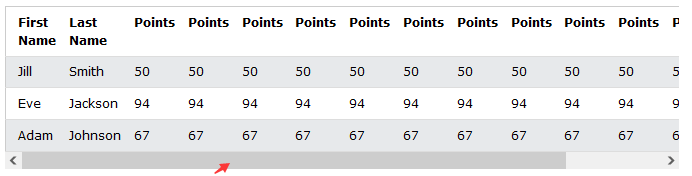
Add a container element (like <div>) with overflow-x:auto around the <table> element to make it responsive:
Example
<div style="overflow-x:auto;">
<table>
... table content ...
</table>
</div>
<!DOCTYPE html>
<html>
<head>
<style>
table {
  border-collapse: collapse;
  width: 100%;
}

th, td {
  text-align: left;
  padding: 8px;
}

tr:nth-child(even) {background-color: #f2f2f2;}
</style>
</head>
<body>

<h2>Responsive Table</h2>
<p>A responsive table will display a horizontal scroll bar if the screen is too
small to display the full content. Resize the browser window to see the effect:</p>
<p>To create a responsive table, add a container element (like div) with <strong>overflow-x:auto</strong> around the table element:</p>

<div style="overflow-x: auto;">
  <table>
    <tr>
      <th>First Name</th>
      <th>Last Name</th>
      <th>Points</th>
      <th>Points</th>
      <th>Points</th>
      <th>Points</th>
      <th>Points</th>
      <th>Points</th>
      <th>Points</th>
      <th>Points</th>
      <th>Points</th>
      <th>Points</th>
    </tr>
    <tr>
      <td>Jill</td>
      <td>Smith</td>
      <td>50</td>
      <td>50</td>
      <td>50</td>
      <td>50</td>
      <td>50</td>
      <td>50</td>
      <td>50</td>
      <td>50</td>
      <td>50</td>
      <td>50</td>
    </tr>
    <tr>
      <td>Eve</td>
      <td>Jackson</td>
      <td>94</td>
      <td>94</td>
      <td>94</td>
      <td>94</td>
      <td>94</td>
      <td>94</td>
      <td>94</td>
      <td>94</td>
      <td>94</td>
      <td>94</td>
    </tr>
    <tr>
      <td>Adam</td>
      <td>Johnson</td>
      <td>67</td>
      <td>67</td>
      <td>67</td>
      <td>67</td>
      <td>67</td>
      <td>67</td>
      <td>67</td>
      <td>67</td>
      <td>67</td>
      <td>67</td>
    </tr>
  </table>
</div>

</body>
</html>
Note: In OS X Lion (on Mac), scrollbars are hidden by default and only shown when being used (even though "overflow:scroll" is set).
More Examples
Make a fancy table
This example demonstrates how to create a fancy table.
Set the position of the table caption
This example demonstrates how to position the table caption.
CSS Table Properties
| Property | Description |
|---|---|
| border | Sets all the border properties in one declaration |
| border-collapse | Specifies whether or not table borders should be collapsed |
| border-spacing | Specifies the distance between the borders of adjacent cells |
| caption-side | Specifies the placement of a table caption |
| empty-cells | Specifies whether or not to display borders and background on empty cells in a table |
| table-layout | Sets the layout algorithm to be used for a table |

 浙公网安备 33010602011771号